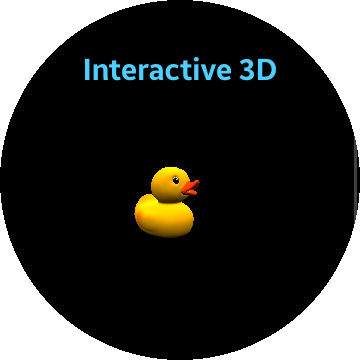
Interactive 3D
The interactive 3D component allows you to load and control a 3D model freely.
| Note |
|---|
| This component is supported since Tizen 5.5. |
Table of Contents
Default Selectors
By default, all <div> elements with the class="ui-i3d" attribute are displayed as interactive 3D.
HTML Examples
-
To use Interactive 3D, you must import
tau.i3d.jsalong withtau.js.
To create a interactive 3D using theclassattribute, use the following code:<div class="ui-i3d"> width="320" height="240" position="0 0 0" scale="50 50 50" rotation="0 -90 0" light="0xbbbbbb 0x000000 2" controls autoplay src="assets/Duck.gltf" </div>
Options
Summary
| Option | Input type | Default value | Description |
|---|---|---|---|
| src | string | "" | A string containing the path/URL of the file to be loaded. Supported formats are fbx, gltf, and obj. |
| width | string | "400" | Set the interactive 3D width in pixels. |
| height | string | "300" | Set the interactive 3D height in pixels. |
| position | string | "0 0 0" | Set the interactive 3D local position(x, y, z). |
| scale | string | "1 1 1" | Set the interactive 3D local scale(x, y, z). |
| rotation | string | "0 0 0" | Set the interactive 3D local rotation in radians(x, y, z). |
| light | string | "0xffffff 0xffffff 1" | A light source positioned directly above the scene(skyColor, groundColor, intensity). |
| controls | Obrit controls allow the camera to orbit around a target. | ||
| autoplay | Play animations of the model automatically. |